Getting started
New to the package? The overview explains its features and the reporter and CLI workflows. This guide sets up a reporter that sends a message when your Playwright run finishes.
Prerequisites
- A working Playwright Test project with
@playwright/test, its required browsers, and a test suite you can run withnpx playwright test. - A Node.js version compatible with your installed Playwright and this package's dependencies. The packaged consumer harness checks Node 24 and newer; Node 24+ is a suitable starting point for the current package.
- npm or Yarn to install the reporter. Consumers can keep their existing Node/npm/Yarn workflow; Bun is used for contributing to this repository.
- A Slack workspace and permission to create or install an app. Your workspace may require administrator approval.
- A destination channel and network access to Slack from your local machine or CI runner. See proxy configuration if your network requires a proxy.
Install
Run one of these commands in your Playwright project's directory:
yarn
yarn add playwright-slack-report -D
npm
npm install playwright-slack-report -D
Choose your Slack connection
Compare features by mode to choose between webhook and bot delivery with the reporter or CLI.
- Incoming webhook: the shortest path to a report in one channel. Failure, global error, and flaky details appear inline.
- Slack bot: send to multiple channels, route successful and unsuccessful runs separately, and put details in a thread.
Follow the relevant guide to create your credentials. Configure one transport and keep credentials in environment variables or CI secrets. For a webhook, do not also set SLACK_BOT_USER_OAUTH_TOKEN or slackOAuthToken.
Send your first report
Create an incoming webhook and set SLACK_WEBHOOK_URL in your environment. Add the reporter to playwright.config.ts:
import { defineConfig } from '@playwright/test';

export default defineConfig({
  reporter: [
    [
      './node_modules/playwright-slack-report/dist/src/SlackReporter.js',
      {
        slackWebHookUrl: process.env.SLACK_WEBHOOK_URL,
        sendResults: 'always', // Also: 'on-failure', 'on-flaky', 'off'
      },
    ],
    ['dot'], // other reporters
  ],
});
Set the webhook URL in the same shell where you run Playwright, replacing the placeholder with your URL. In CI, inject SLACK_WEBHOOK_URL from your secret store instead.
Bash / zsh
export SLACK_WEBHOOK_URL='https://hooks.slack.com/services/YOUR/WEBHOOK/SECRET'
npx playwright test
PowerShell
$env:SLACK_WEBHOOK_URL = 'https://hooks.slack.com/services/YOUR/WEBHOOK/SECRET'
npx playwright test
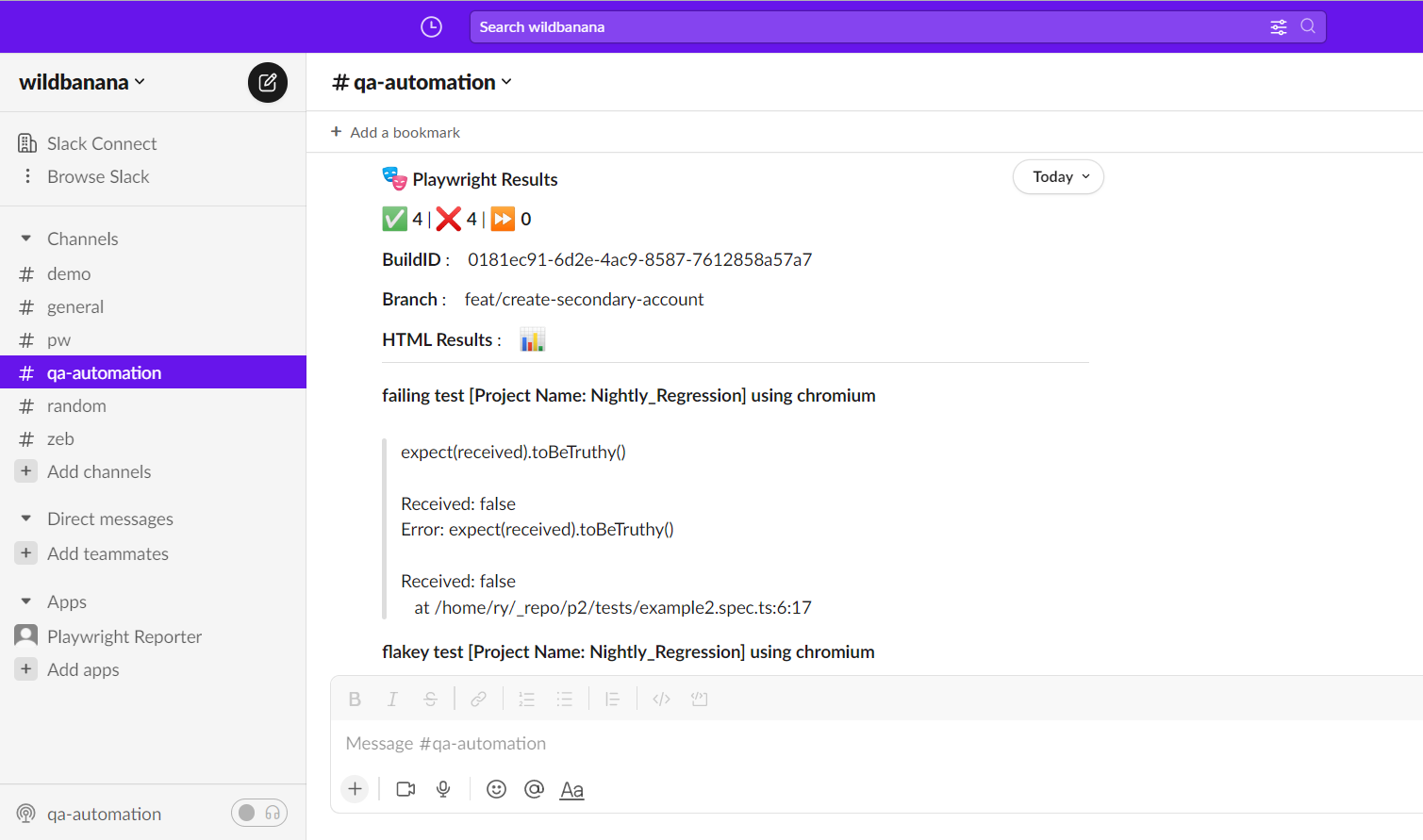
The reporter posts a summary to your webhook's Slack channel when the run finishes. Your terminal still shows the dot reporter. With a bot, use the complete configuration and token instructions in Slack bot setup.
If no report arrives, check the terminal for configuration or delivery errors, confirm your credentials are set, and check the selected channel. A clean empty run stays silent; see run-level errors and interruptions for failure cases and delivery limits.
What you can build
Send reports to one or more channels, publish only when tests fail or become flaky, include branch and build context, and define your own Slack message layout.
Next steps
- Configuration: notification rules, channel routing, failure and flaky details, logging, proxies, and metadata.
- CLI and sharded runs: send existing JSON results or a merged report from CI.
- Custom message layouts: change Slack blocks and add screenshots or videos.