Layout gallery
Start with one of these five layouts and adapt it to your team's Slack channel. Each is a synchronous function that receives SummaryResults and returns Slack blocks. They work with reporter webhook and bot delivery.
The screenshots below are local previews rendered from the examples' actual Block Kit output using sample data. They illustrate the content and arrangement; Slack's fonts and spacing may differ. No Slack messages are sent when generating these previews.
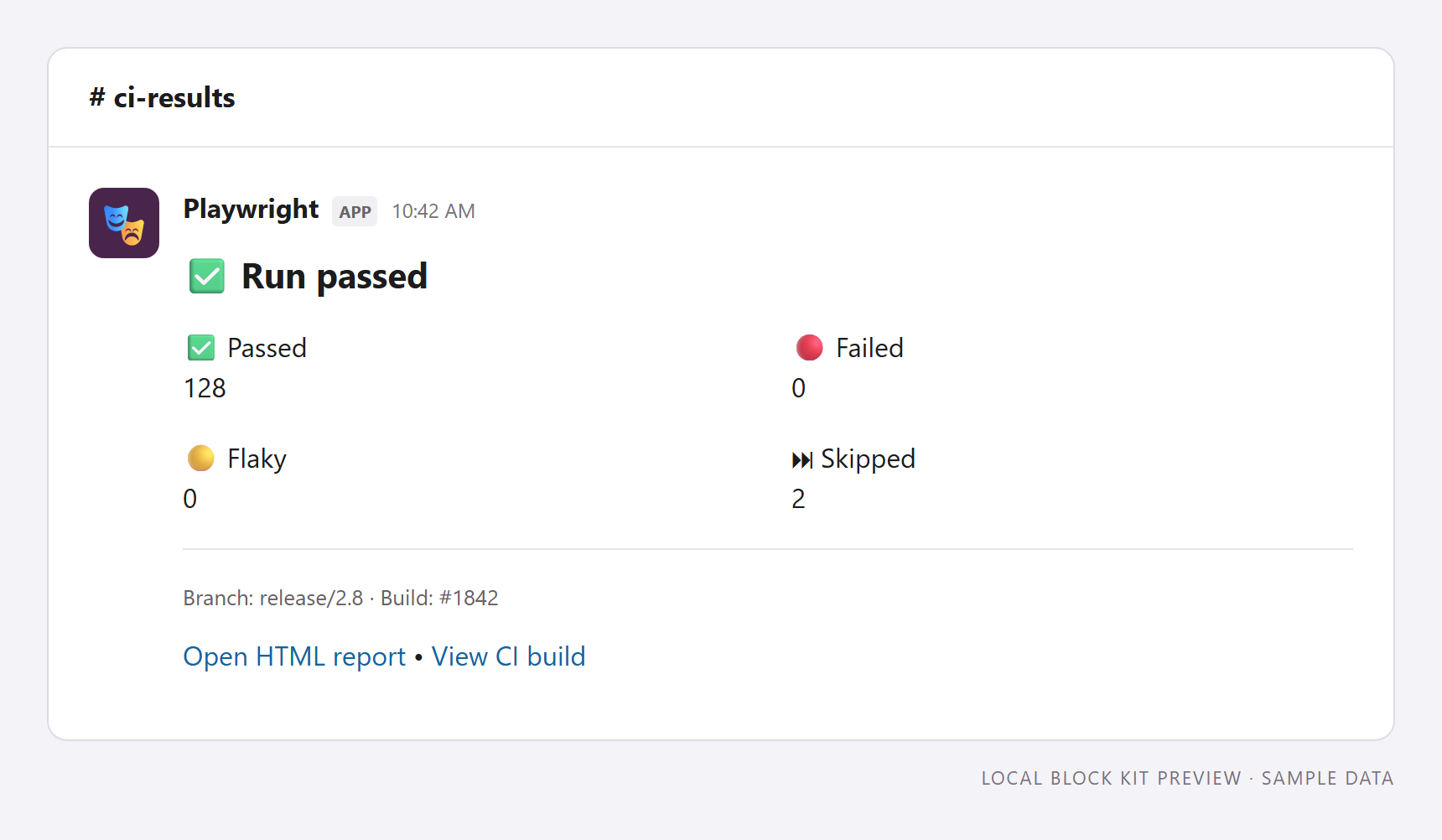
1. Build summary
Function: generateBuildSummary · Best for: a busy CI channel.
Four fields put passed, failed, flaky, and skipped counts first. Branch and build context sit below the counts, followed by links to the report and CI run. The heading reflects run failures, timeouts, and interruptions, even when no individual test failed.
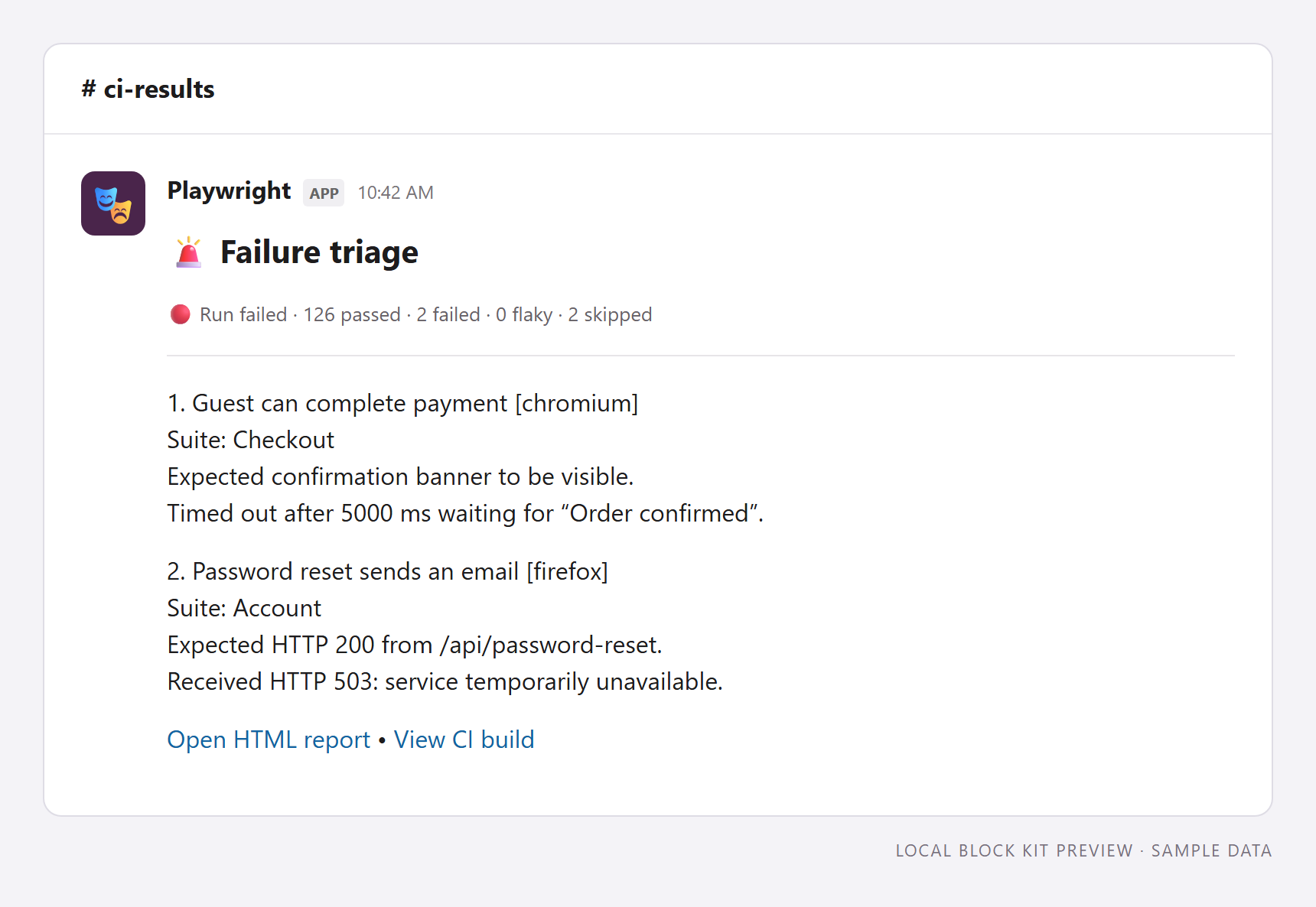
2. Failure triage
Function: generateFailureTriage · Best for: investigating a broken build.
Show up to two global run errors and three test failures, including the test, suite, and a shortened error message. An omission count points readers to the full report when more details are available. A run failure with no recorded details still keeps its failed status visible.
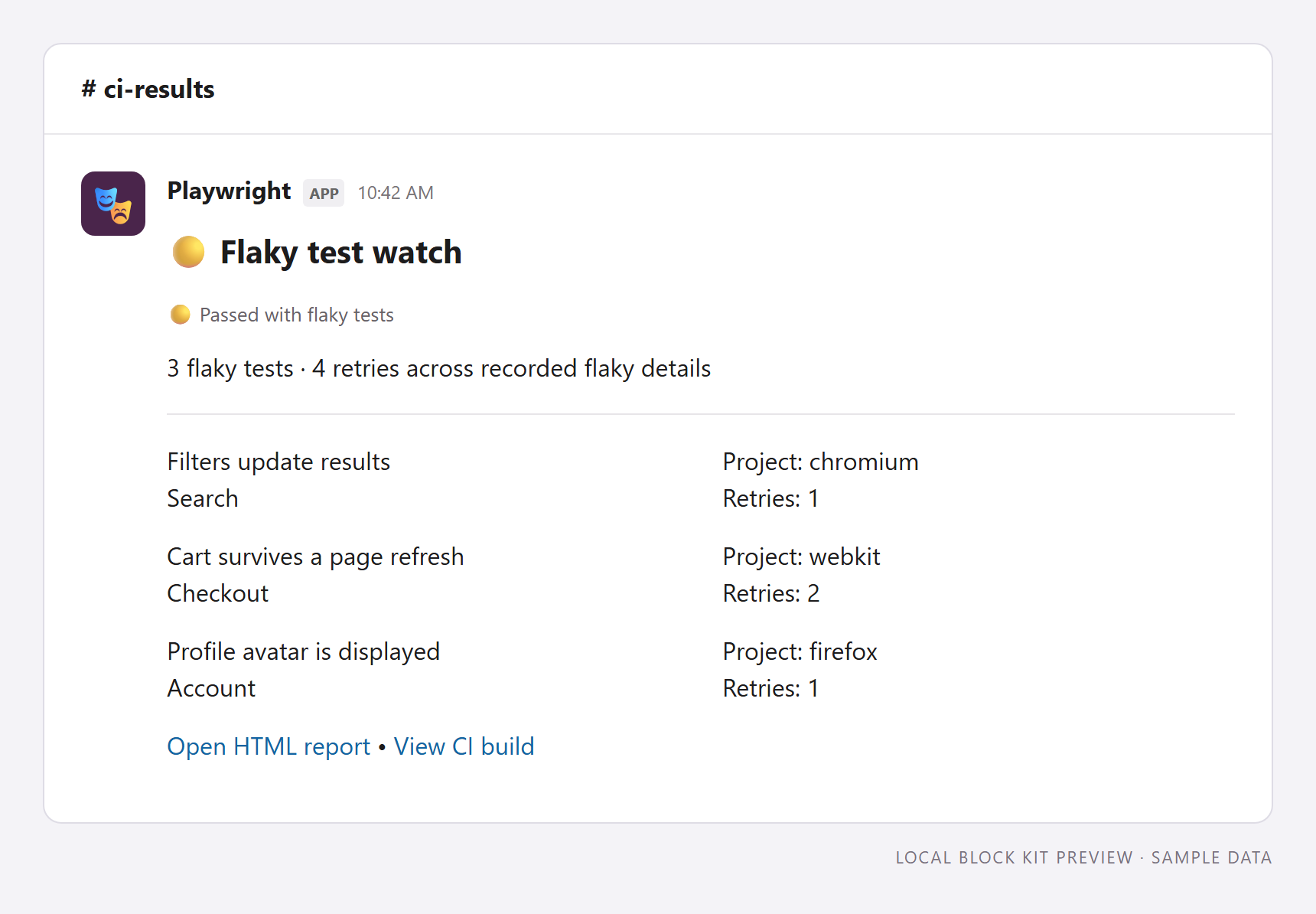
3. Flaky test watch
Function: generateFlakyWatch · Best for: a test reliability channel.
List up to four flaky tests with suite, project, and actual retry counts. This uses flakyTests rather than guessing from failures or configured retry limits. Use sendResults: 'on-flaky' if you only want notifications for runs containing flaky tests. The overall run status remains visible for runs that also have failures.
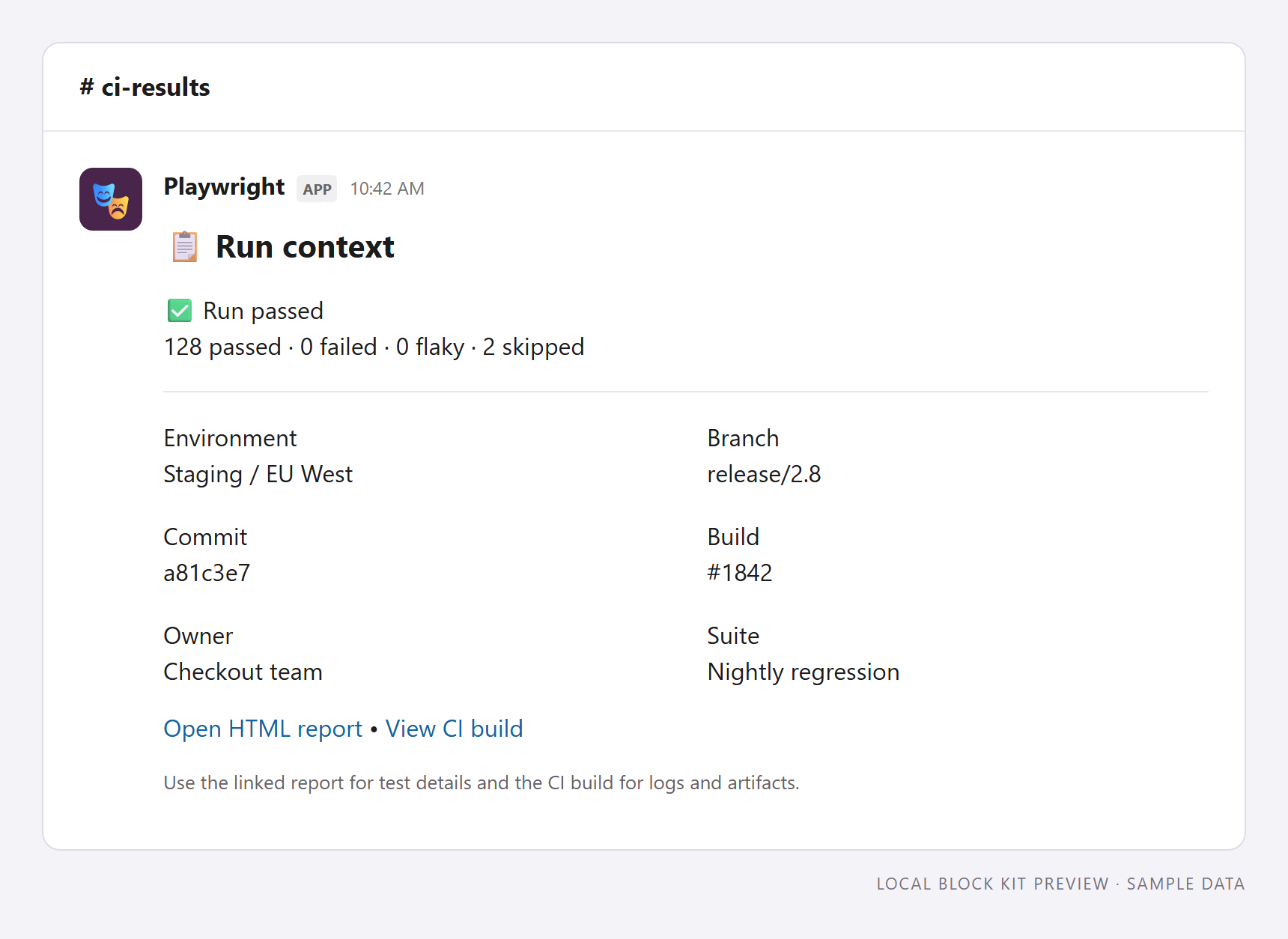
4. Run context
Function: generateRunContext · Best for: sharing a run with another team.
Combine the outcome and counts with environment, branch, commit, build, owner, and suite. Report and CI links help teammates find the right artifacts without searching the channel. Missing metadata displays as “Not supplied”.
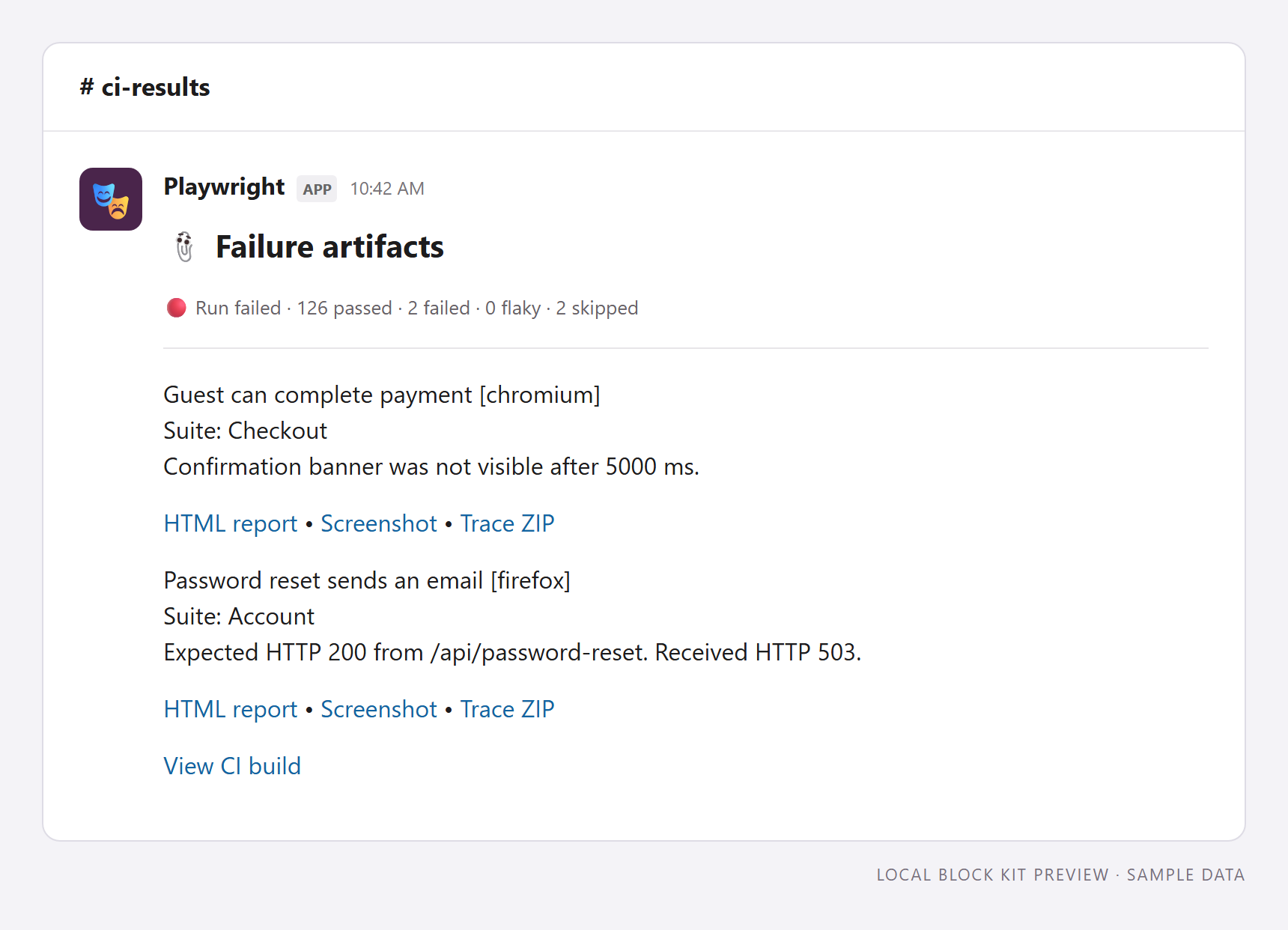
5. Failure artifacts
Function: generateFailureArtifacts · Best for: opening debugging artifacts directly from a failure notification.
Each failure has a short error summary and up to three hosted links: HTML report, screenshot, and trace ZIP.
The template reads failures[].artifacts, which the reporter or CLI populates through artifactLinks.
It shows up to three test failures and two global errors. Additional details and oversized links have omission notices.
Failures without links remain visible. Invalid URLs and duplicate URLs are omitted.
Download Block Kit JSON · Download TypeScript template
This template requires the artifactLinks feature prepared for version 1.1.118.
The sample URLs are placeholders. The package does not upload files or grant access to hosted artifacts.
Trace links open ZIP files. The HTML link opens the configured report page.
Reporter setup
- Download
showcase.tsfrom the link above. - Save it beside
playwright.config.ts. - Install
@slack/typesas a development dependency. - Set
SLACK_WEBHOOK_URLto your incoming webhook URL. - Replace the example URLs with your artifact host URLs.
- Set
pathPrefixto the local directory mirrored atbaseUrl.
import { defineConfig } from '@playwright/test';
import { generateFailureArtifacts } from './showcase';

export default defineConfig({
  outputDir: 'test-results',
  use: {
    screenshot: 'only-on-failure',
    trace: 'retain-on-failure',
  },
  reporter: [
    ['dot'],
    ['html', { open: 'never' }],
    [
      'playwright-slack-report/dist/src/SlackReporter.js',
      {
        slackWebHookUrl: process.env.SLACK_WEBHOOK_URL,
        sendResults: 'on-failure',
        layout: generateFailureArtifacts,
        disableUnfurl: true,
        artifactLinks: {
          baseUrl: 'https://example.com/artifacts/1842/',
          pathPrefix: 'test-results',
          reportUrl: 'https://example.com/reports/1842/index.html',
        },
      },
    ],
  ],
});
Upload test-results and playwright-report to the configured destinations with their directory structures intact.
The reporter sends links when the test run ends. Those links become usable after your upload finishes.
If uploads must finish before notification, use the CLI workflow below.
For bot delivery, replace slackWebHookUrl with channels: ['ci-results'].
Set SLACK_BOT_USER_OAUTH_TOKEN to the bot token.
This custom layout puts links inline. Keep showInThread off for the pictured result.
For default failure threads, omit layout and enable showInThread with bot delivery.
CLI setup
- Generate Playwright JSON with the JSON reporter.
- Upload the artifacts and HTML report before sending the notification.
- Compile the downloaded template with the command below.
bun build ./showcase.ts --target=node --format=cjs --outfile=./showcase.cjs
- Save this configuration as
cli-artifacts.json. - Replace the example URLs and channel name with your values.
- Set
pathPrefixto the directory represented in the JSON attachment paths. - Set
SLACK_BOT_USER_OAUTH_TOKENto the bot token.
{
  "sendResults": "on-failure",
  "slackLogLevel": "error",
  "sendUsingBot": { "channels": ["ci-results"] },
  "disableUnfurl": true,
  "customLayout": {
    "source": "./showcase.cjs",
    "functionName": "generateFailureArtifacts"
  },
  "artifactLinks": {
    "baseUrl": "https://example.com/artifacts/1842/",
    "pathPrefix": "test-results",
    "reportUrl": "https://example.com/reports/1842/index.html"
  }
}
- Send the report after the uploads finish.
bunx playwright-slack-report -c cli-artifacts.json -j results.json
Relative paths resolve from the CLI working directory.
For JSON from another machine, use its absolute upload directory as pathPrefix.
See artifact mapping options for path rules and CLI configuration for transport options.
Use an example
Download showcase.ts and save it in your project. The file contains all five functions and their shared helpers. Install @slack/types as a development dependency if needed, then select a function in playwright.config.ts:
import { defineConfig } from '@playwright/test';
import { generateBuildSummary } from './showcase';

export default defineConfig({
  reporter: [
    ['dot'],
    [
      'playwright-slack-report/dist/src/SlackReporter.js',
      {
        slackWebHookUrl: process.env.SLACK_WEBHOOK_URL,
        sendResults: 'always',
        layout: generateBuildSummary,
        meta: [
          { key: 'Environment', value: 'Staging / EU West' },
          { key: 'Branch', value: process.env.GITHUB_REF_NAME || 'local' },
          { key: 'Build', value: process.env.GITHUB_RUN_NUMBER || 'local' },
          { key: 'Commit', value: process.env.GITHUB_SHA || 'local' },
          { key: 'Owner', value: 'Checkout team' },
          { key: 'Suite', value: 'Nightly regression' },
          { key: 'Report URL', value: 'https://example.com/reports/1842' },
          { key: 'Build URL', value: 'https://example.com/builds/1842' },
        ],
      },
    ],
  ],
});
Replace the example URLs with your own report and CI links. Optional links are omitted if they are missing or invalid. Metadata keys are case-sensitive. For bot delivery, replace slackWebHookUrl with channels: ['ci-results'] and supply SLACK_BOT_USER_OAUTH_TOKEN.
These custom layouts show details inline and impose their own limits. The reporter's default-layout detail limits do not trim custom output. Keep showInThread off for the pictured result; see custom layouts and reporter configuration for other arrangements.
Adapt and preview
Open a downloaded JSON payload in Slack's Block Kit Builder to inspect it with Slack's renderer. The examples use headers, sections and fields, dividers, and context blocks. Dynamic names, errors, and metadata use plain text; the report links use Slack's link formatting.
For the CLI, compile showcase.ts to CommonJS (for example, bun build ./showcase.ts --target=node --format=cjs --outfile=./showcase.cjs), then set customLayout.source to ./showcase.cjs and customLayout.functionName to the chosen exported function. See CLI configuration.
Contributors can regenerate the screenshots, sample JSON, and downloadable source from the repository root:
bun install --frozen-lockfile
bun --bun x playwright install chromium
bun scripts/layout-previews.ts
Edit custom_block/showcase.ts for the layouts and scripts/layout-preview-data.ts for the sample data. The preview script only renders the block types used in this gallery; it is not a general Slack renderer. It runs locally without Slack credentials.